

IT-Network and Internet Services
Network and Internet Services
Kadir Has University has an advanced network infrastructure to offer fast, secure, and uninterrupted internet access to its users. High-speed wireless (Wi-Fi) and wired internet connection is provided in all campus buildings.
Infrastructure and Coverage
- Wireless: Strong coverage and high speed throughout the campus.
- Wired: Fixed access in laboratories, offices, and specific workspaces.
- Security: Corporate authentication and encryption.
- Fast Infrastructure: Internet capacity 10 Gbps, Wi-Fi 802.11ax.
Which network should I choose?
KHAS-Ogrenci→ StudentsKHAS-Academic-Staff→ Academic/AdministrativeGuest→ Guest
Connecting to Wi-Fi – Step by Step
- 1Select the Wi-Fi network:
KHAS-Ogrenci/KHAS-Academic-Staff - 2User: Student
[email protected]· Staff[email protected] - 3Connect: Enter password; optionally check Connect automatically.
-
4
Ready: Click on the thumbnails.
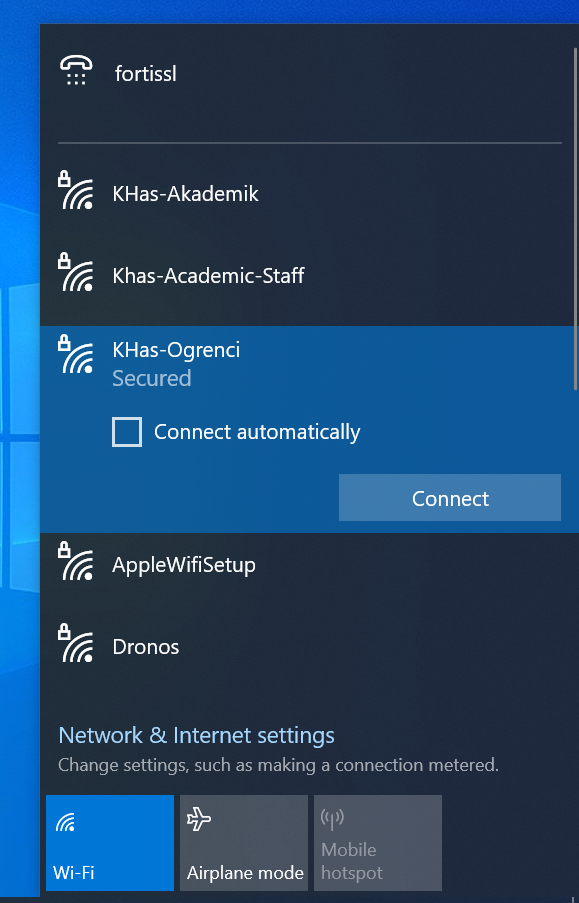
Step 1 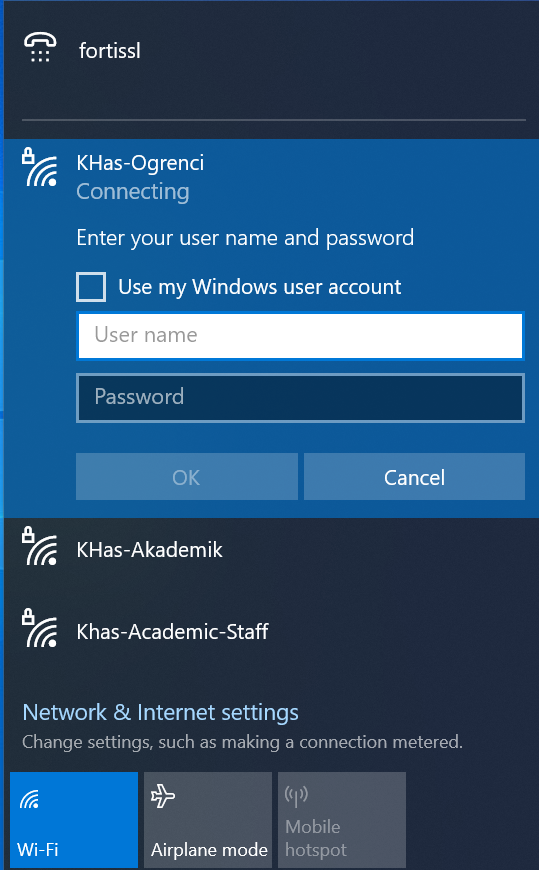
Step 2 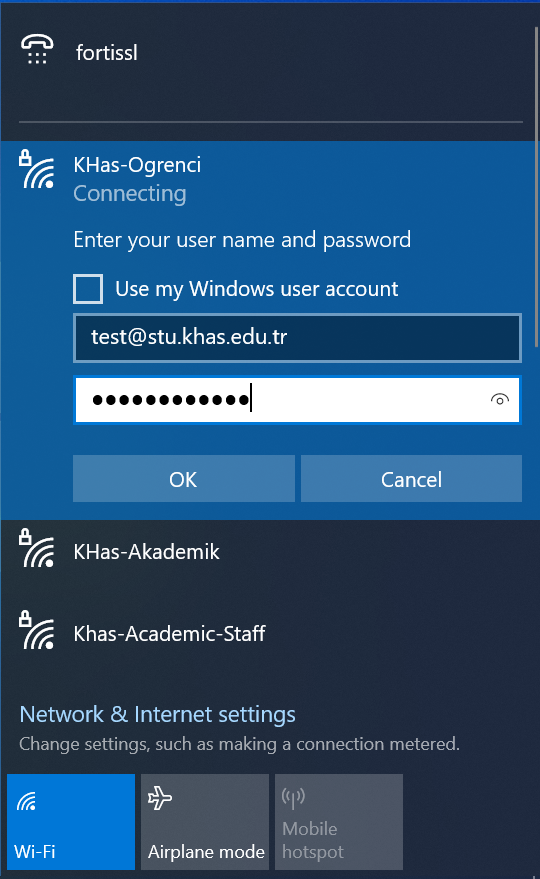
Step 3
- 1Turn on Wi-Fi and select:
KHAS-Ogrenci/KHAS-Academic-Staff - 2Credentials: Student
[email protected]· Staff[email protected] - 3Password: Remember this network is optional.
-
4
Ready: Click on the thumbnails.
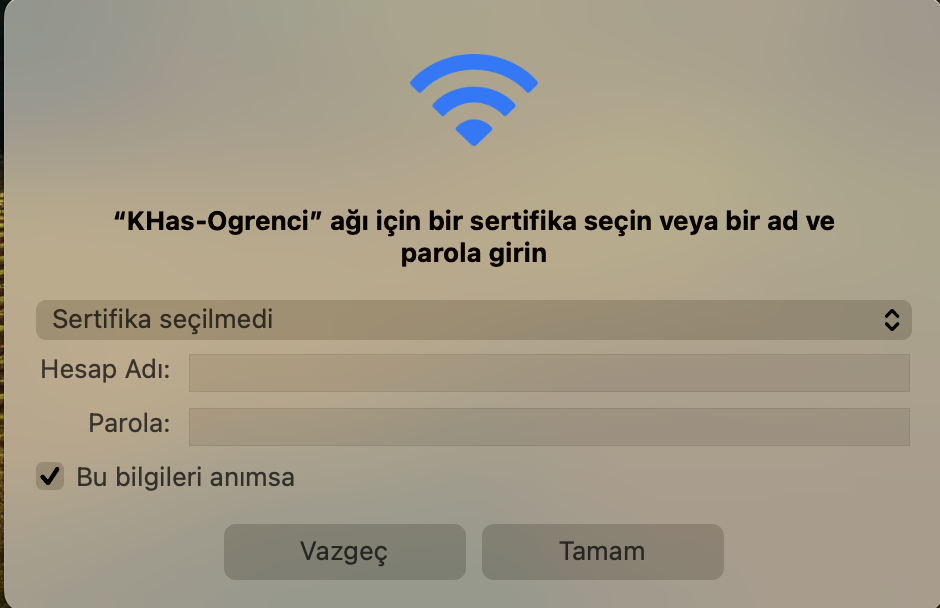
Step 1 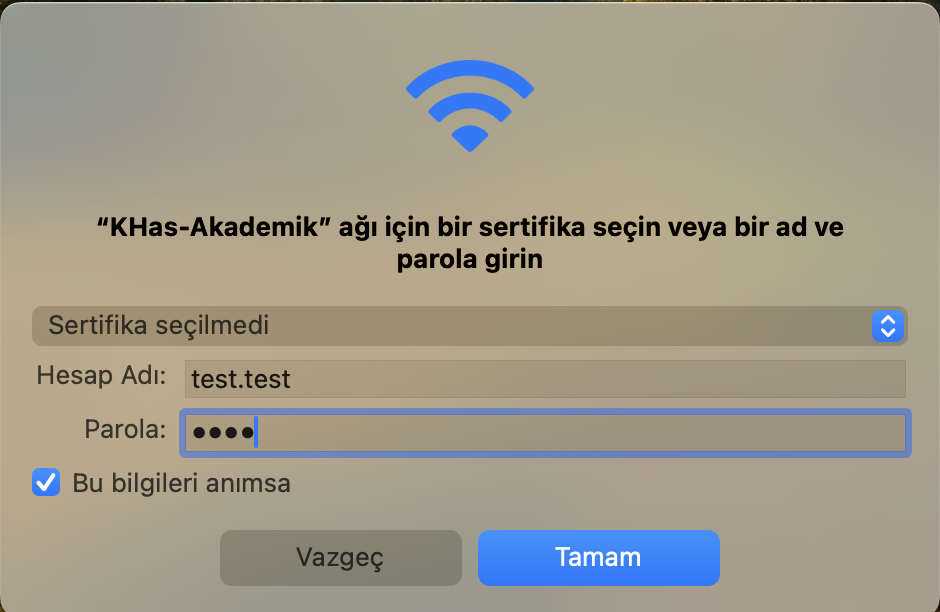
Step 2 Step 3
Quick Tips
- Enter your email extension correctly during login (@stu.khas.edu.tr / @khas.edu.tr).
- In case of connection issues, try toggling Wi-Fi off/on; try again from a different spot.
- If VPN is on, it may cause issues during the first connection; try turning it off temporarily.
- Leave 'connect automatically' on only for your frequently used devices.
Frequently Asked Questions
Type your username in email format (e.g., [email protected]). Reset your password if it is not current.
Signal may be affected during peak hours. Try toggling Wi-Fi off/on; use a 5 GHz supported adapter if possible.
The
Guest network may be opened according to periodic policies. A request must be created by the relevant unit for events/visits.
Support
IT Support: [email protected] · Tel: 0 (212) 533 65 32
Your network usage is subject to the university's information security and GDPR (KVKK) policies.